Before you begin
Do not use a Private or Incognito window. Your device and browser must both allow notifications. On iPhone and iPad, you must use Safari—no other iPhone browser supports these alerts—and you must open the app from its Home Screen icon.
iPhone or iPad · Safari only
Important: on iPhone and iPad, always use Safari. Chrome, Edge, Firefox, and other browsers on iOS cannot turn on or deliver these alerts. Also requires iOS or iPadOS 16.4 or newer, and alerts only work from the Home Screen app—not from an ordinary Safari tab.
Turn on alerts
- Open Philly Trash Day in Safari. If you opened this page in another browser (Chrome, Edge, Firefox, etc.), copy this page’s address, open Safari, and paste it there. Safari is the only iPhone or iPad browser that can deliver these alerts.
- Tap Safari’s Share button at the bottom of the screen—the square with an upward arrow.
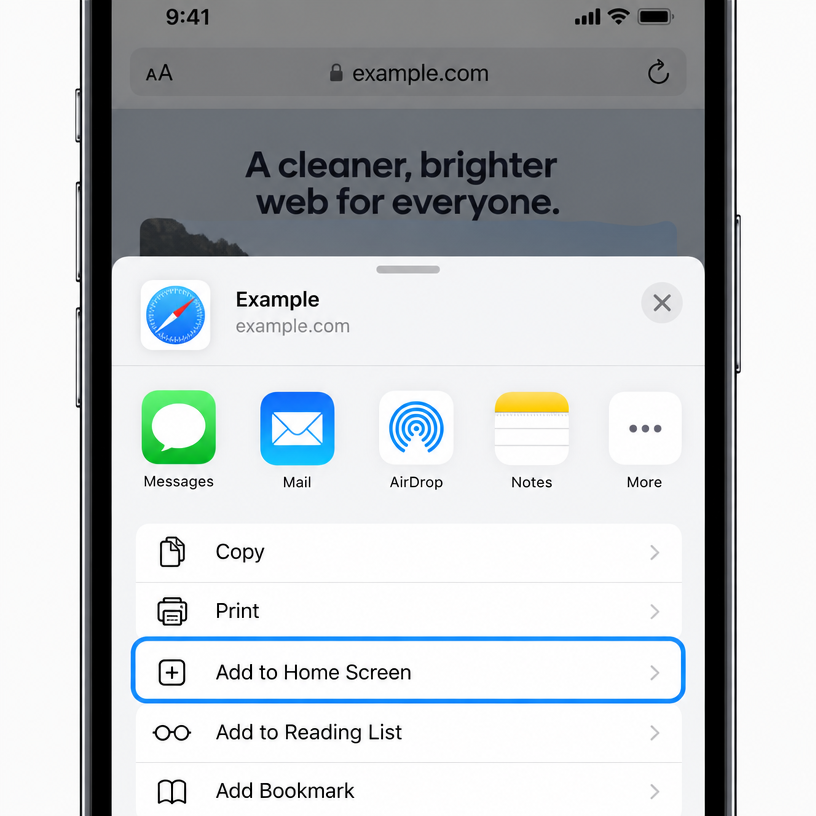
- Scroll down and tap “Add to Home Screen,” then tap “Add.”
- Close Safari. Find the Philly Trash Day icon on your Home Screen and open it there.
- Enter your address, choose your reminder days and times, then tap “Turn on alerts & save schedule.”
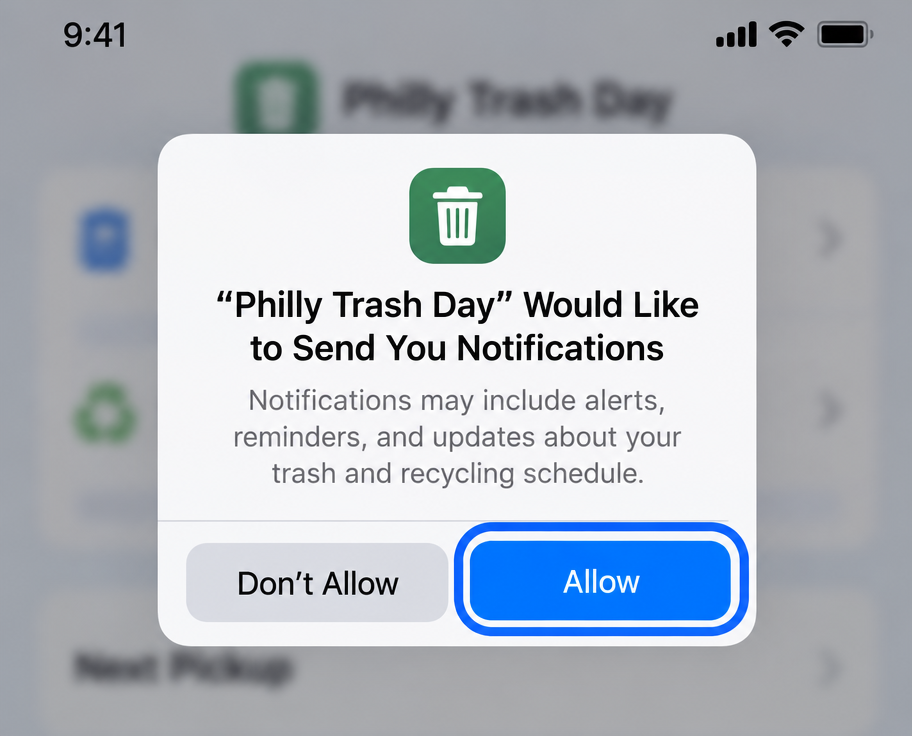
- When your iPhone or iPad asks for permission, tap “Allow.”
- Tap “Send test alert” to confirm that notifications appear.
If alerts are blocked or do not appear
- Open the Settings app, tap Notifications, then tap Philly Trash Day.
- Turn on Allow Notifications. Also check that Focus or Do Not Disturb is not silencing the app.
- If alerts still do not work, delete the Home Screen icon, add it again from Safari, and repeat setup.
Android phone or tablet · Chrome
Turn on alerts
- Open Philly Trash Day in Chrome.
- Enter your address and choose your reminder days and times.
- Tap “Turn on alerts & save schedule,” then tap “Allow” when Chrome asks about notifications.
- Tap “Send test alert” to confirm that notifications appear.
If alerts are blocked or do not appear
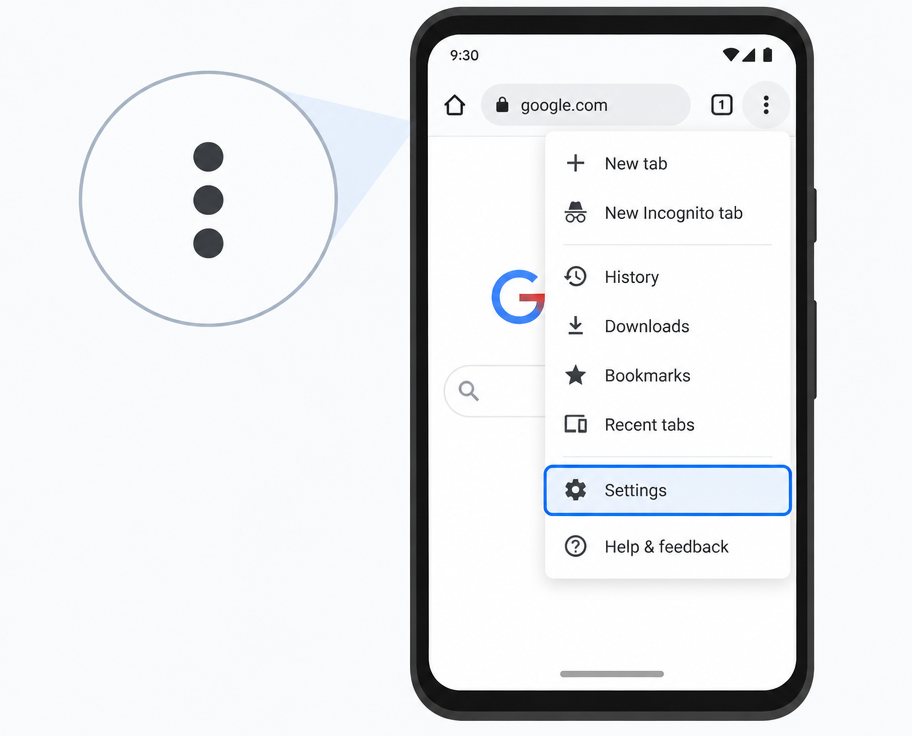
- In Chrome, tap the three-dot menu in the top-right corner, then Settings → Site settings → Notifications.
- Make sure notifications are on. Find Philly Trash Day and change its setting to Allow.
- In Android Settings → Notifications → App notifications → Chrome, make sure Chrome notifications are allowed.
Windows or Mac · Google Chrome
Turn on alerts
- Open Philly Trash Day in Chrome.
- Enter your address, choose your reminder days and times, and click “Turn on alerts & save schedule.”
- Click “Allow” in Chrome’s notification permission box.
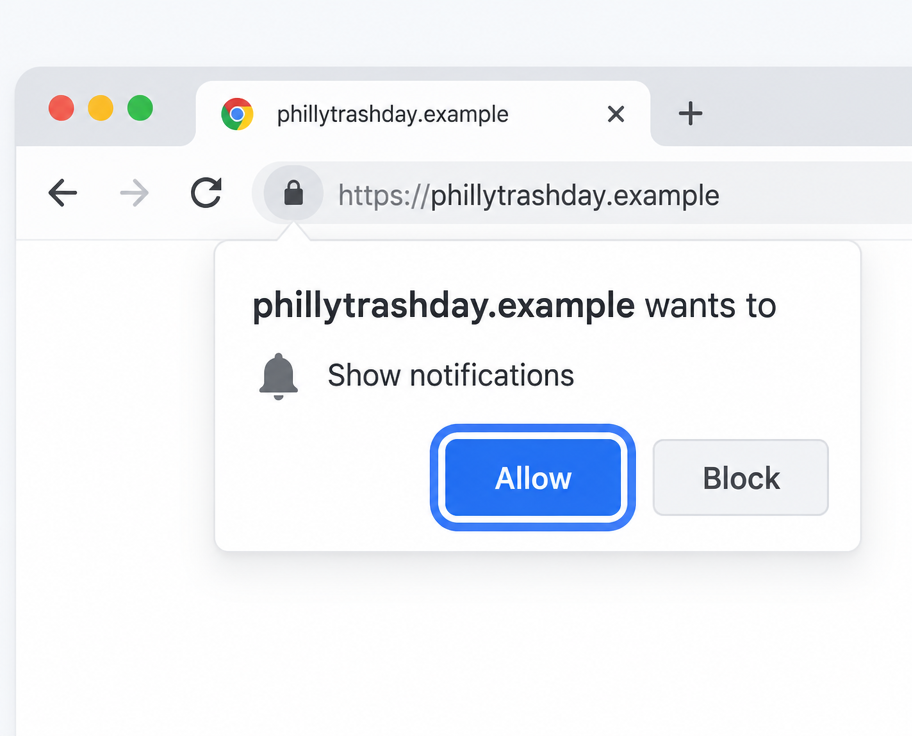
- Click “Send test alert” to confirm that notifications appear.
If alerts are blocked or do not appear
- Click the icon to the left of the web address and set Notifications to Allow.
- Or open Chrome Settings → Privacy and security → Site settings → Notifications, find Philly Trash Day, and choose Allow.
- On Mac, also open System Settings → Notifications → Google Chrome and turn on Allow Notifications.
- On Windows, open Settings → System → Notifications and make sure notifications for Google Chrome are on.
Windows or Mac · Microsoft Edge
Turn on alerts
- Open Philly Trash Day in Microsoft Edge.
- Enter your address, choose your reminder days and times, and click “Turn on alerts & save schedule.”
- Click “Allow” when Edge asks for notification permission.
- Click “Send test alert” to confirm that notifications appear.
If alerts are blocked or do not appear
- Click the icon to the left of the web address, open Permissions for this site, and set Notifications to Allow.
- Or open Edge Settings → Cookies and site permissions → Notifications. Make sure Ask before sending is on and Philly Trash Day is allowed.
- On a work or school computer, an administrator may prevent notification changes. Contact your organization if the setting is locked.
Windows or Mac · Firefox
Turn on alerts
- Open Philly Trash Day in Firefox.
- Enter your address, choose your reminder days and times, and click “Turn on alerts & save schedule.”
- Click “Allow Notifications” when Firefox asks.
- Click “Send test alert” to confirm that notifications appear.
If alerts are blocked or do not appear
- Open Firefox Settings → Privacy & Security → Permissions.
- Next to Notifications, click Settings. Find Philly Trash Day and change its status to Allow—or remove it and return to the site to be asked again.
- Make sure “Block new requests asking to allow notifications” is not selected.
Mac · Safari
On a Mac, the site does not need to be added to the Dock or Home Screen. (On iPhone and iPad it is different: Safari is required and the site must be added to the Home Screen.)
Turn on alerts
- Open Philly Trash Day in Safari.
- Enter your address, choose your reminder days and times, and click “Turn on alerts & save schedule.”
- Click “Allow” when Safari asks for notification permission.
- Click “Send test alert” to confirm that notifications appear.
If alerts are blocked or do not appear
- Open Safari → Settings → Websites → Notifications and set Philly Trash Day to Allow.
- Make sure “Allow websites to ask for permission to send notifications” is selected.
- Open System Settings → Notifications, find Philly Trash Day or Safari, and turn on Allow Notifications.
Still not getting alerts?
- Return to Philly Trash Day and confirm the alert box says “Alerts on.”
- If you changed any day or time, click “Save changes.”
- On iPhone or iPad, double-check that you are using Safari and opening the app from its Home Screen icon—alerts never work from Chrome, Edge, Firefox, or any other browser on iOS.
- Check your device’s Focus, Do Not Disturb, battery-saving, and notification settings.
- Keep the same browser or Home Screen app you originally used. Clearing browser data can remove your alert subscription.
- Turn alerts off, turn them on again, and send another test alert.